

New 49ers App Guide

Device Version Requirements
App Version Requirements
Onboarding Instructions
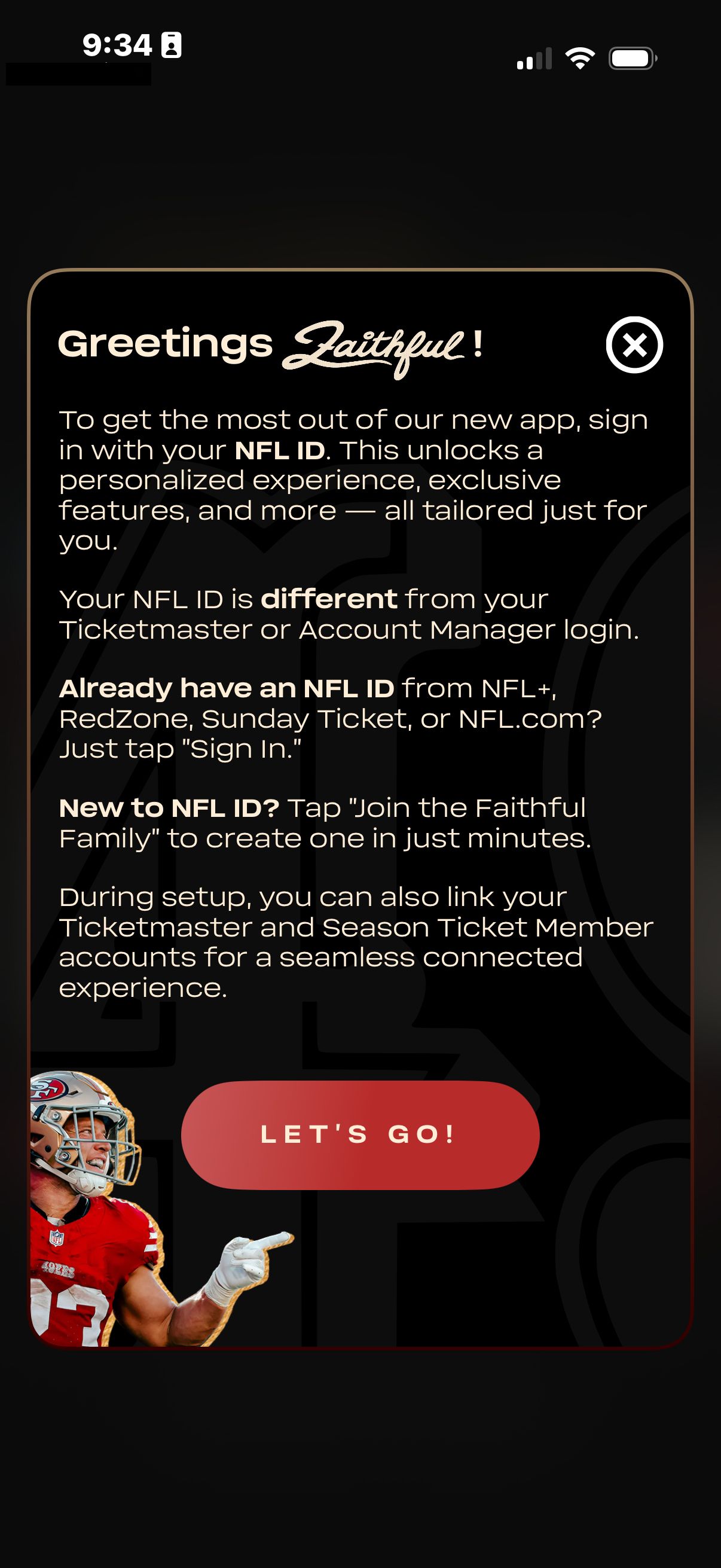
Upon your first time opening the 49ers App, you will be prompted to complete onboarding.
Upon completion, you will gain access to your Fan Profile, ticket management, Season Ticket Member hub, and more
Signing In to NFL ID
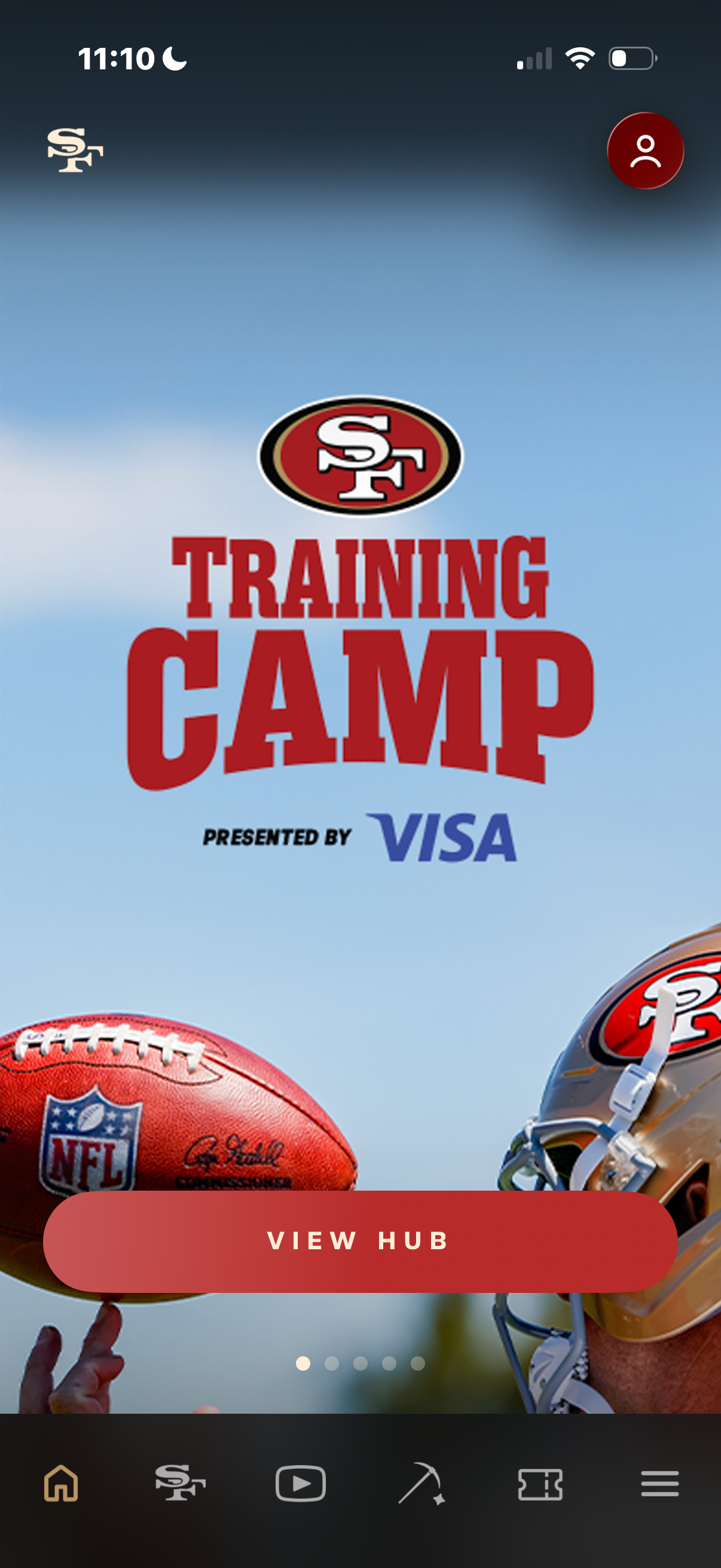
After opening the app, click the profile icon on the top right of your screen.
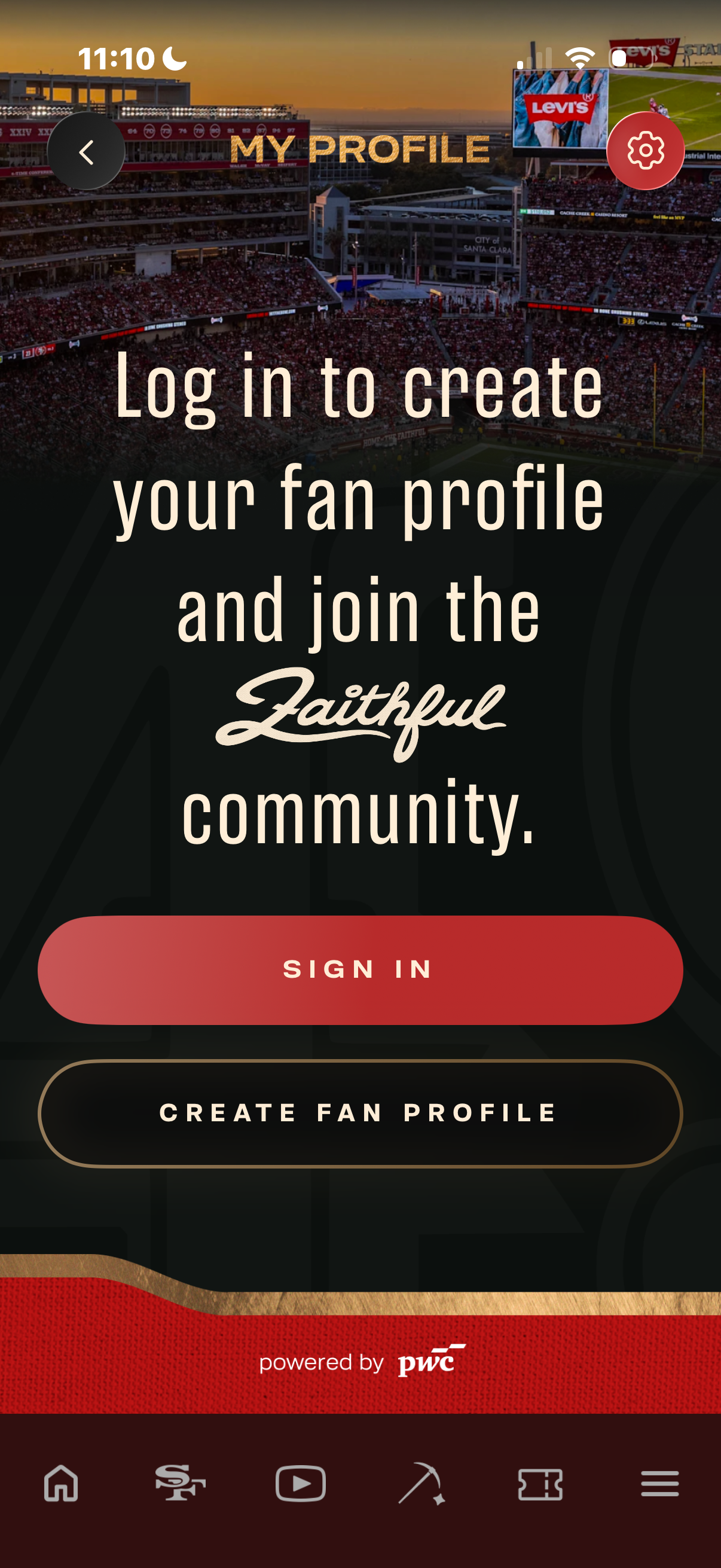
From your profile screen, hit "sign in" to access the NFL ID account login.
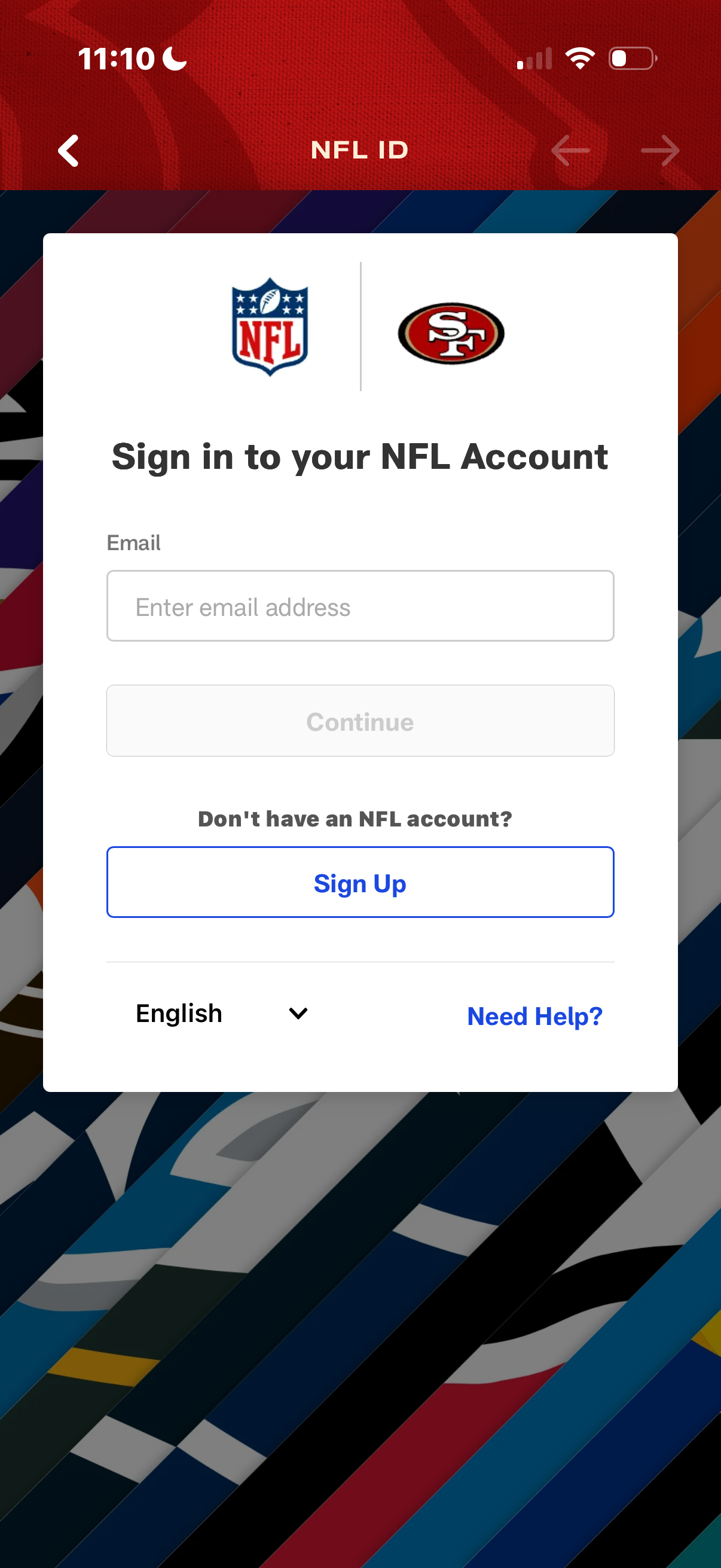
Enter your NFL ID email and password, or hit "sign up" to create an account if you do not have one.
Access Your Tickets
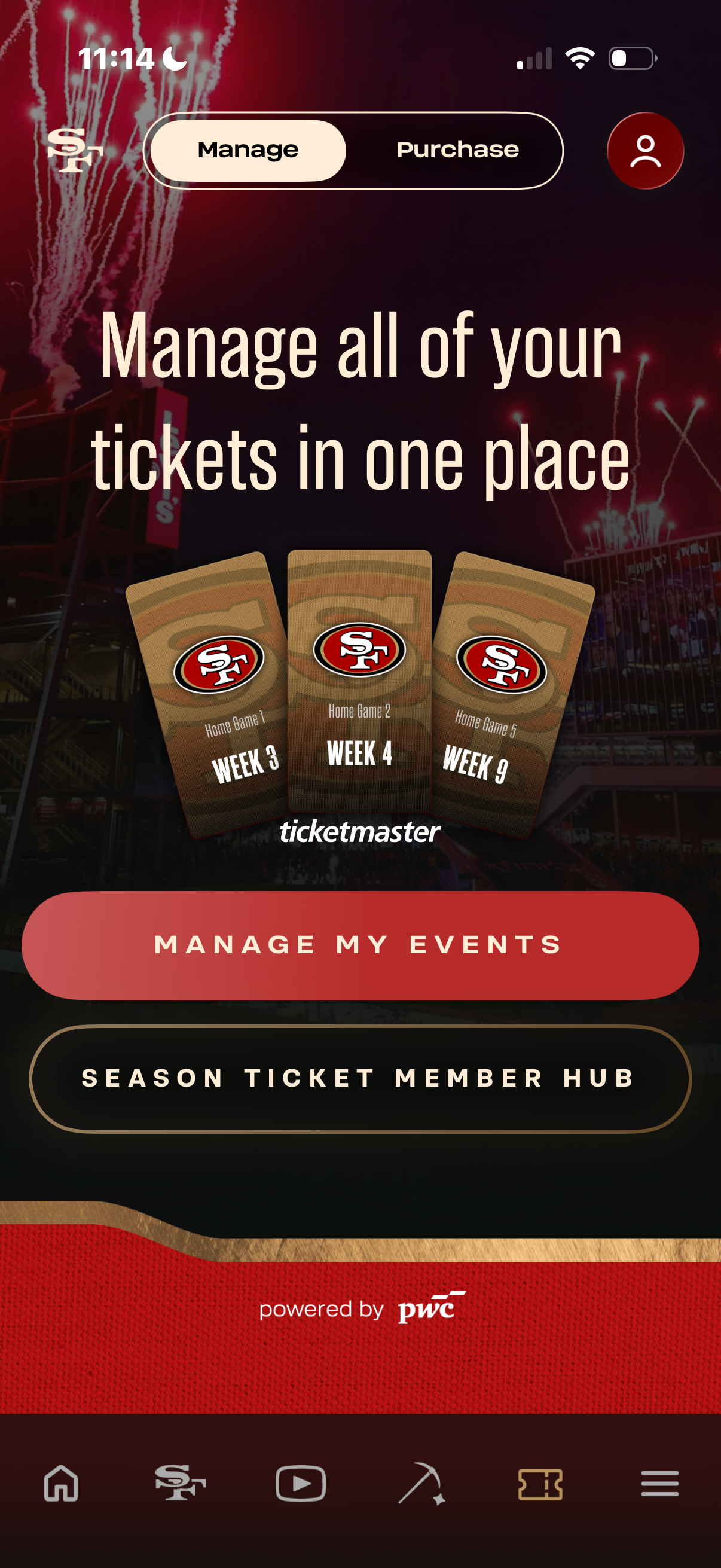
From the 49ers App, hit the ticket icon on the bottom menu and click "manage my events" to access the ticket management page.
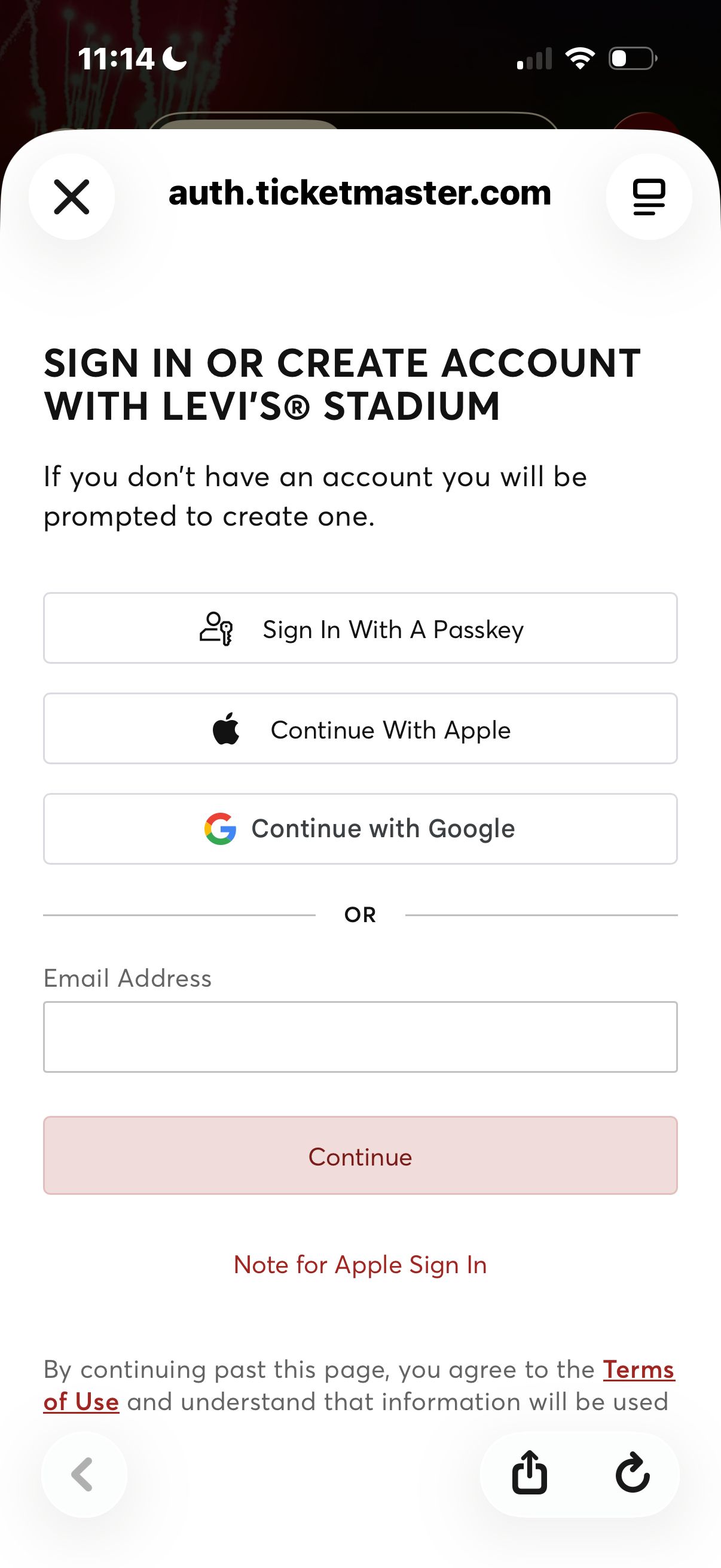
Make sure you are logged into your ticketmaster account to access your tickets.
*Please note that your NFL ID login and ticketmaster login are different accounts. Both are needed to access all the gameday features in the app.
Verify Your Season Ticket Account
From the 49ers App, hit the ticket icon on the bottom menu and click "Season Ticket Member Hub" to verify your season ticket account.
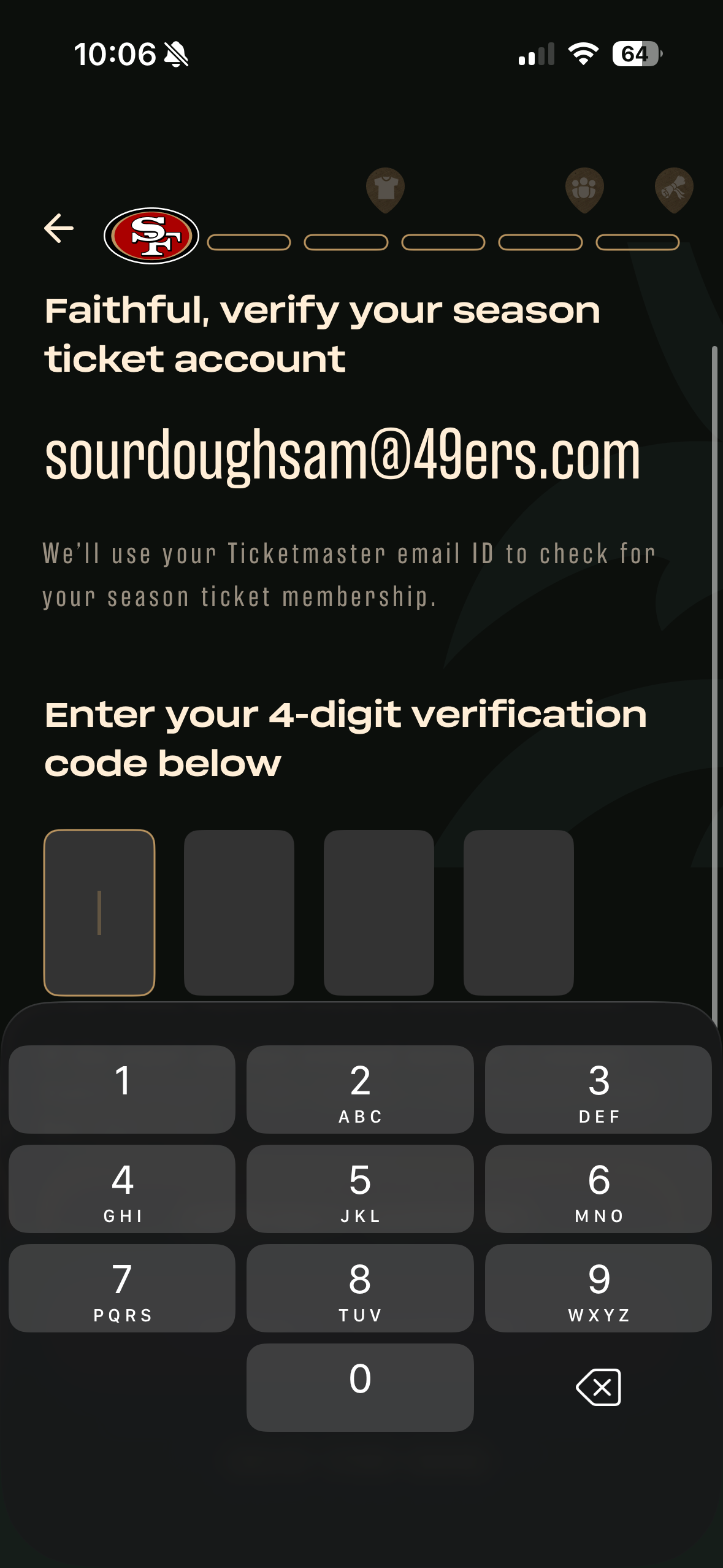
Confirm your season ticket email address is correctly entered and select "Verify Account".
If the email you see is incorrect, you can edit by clicking on the one listed. Please note, you must use the primary email address attached to the season ticket account.
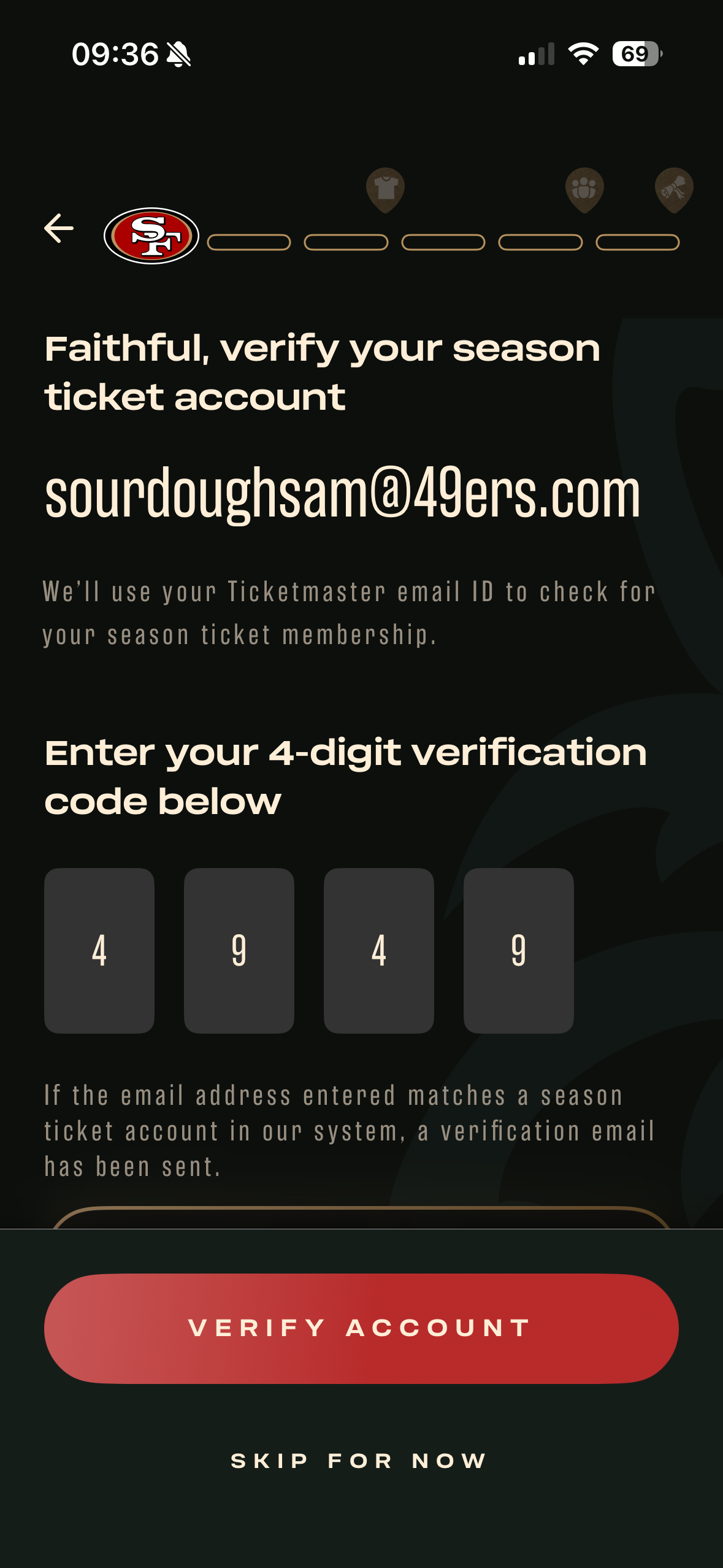
Enter the four digit code that you receive via email and select "Verify Account".
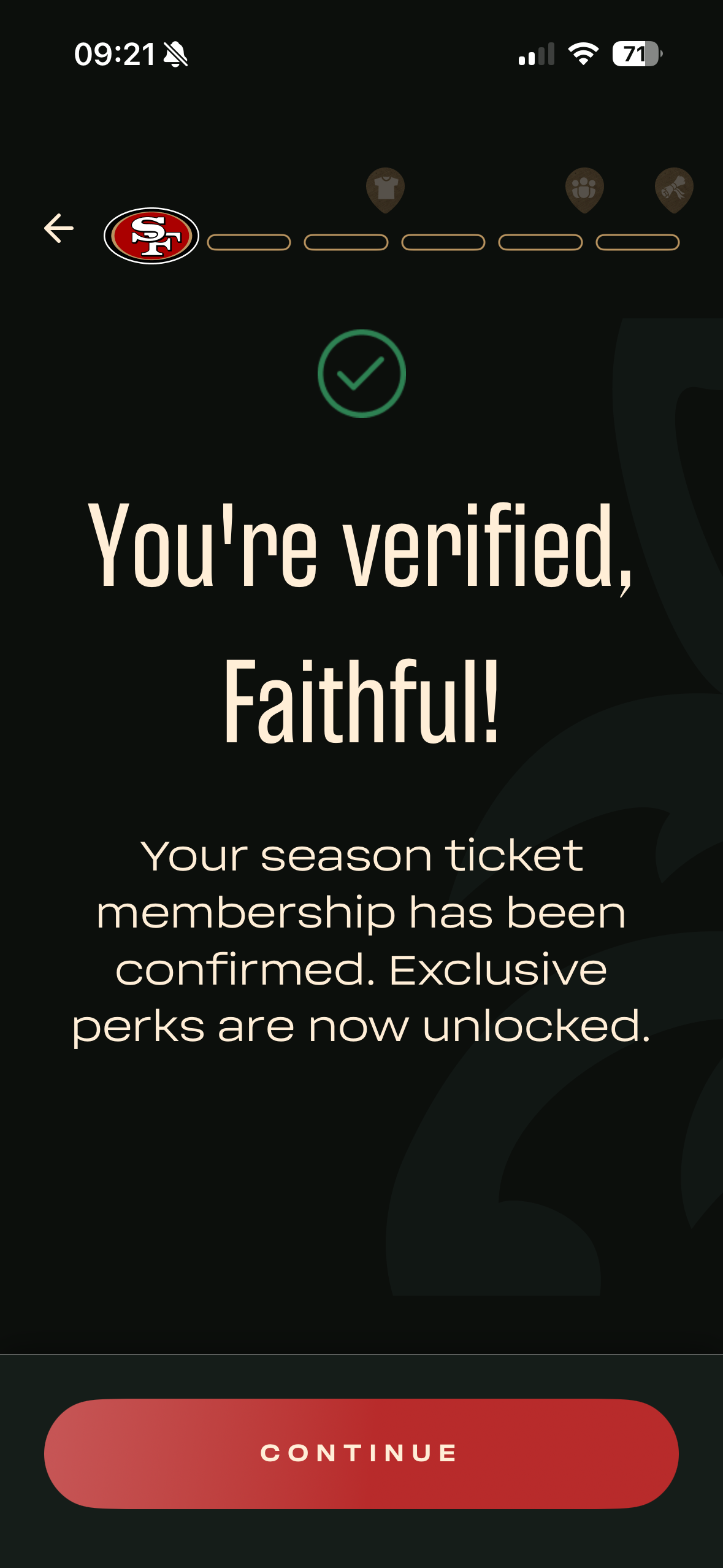
Once successfully verified, you will receive a confirmation. Select "Continue" to access the Season Ticket Member Hub.
From the Season Ticket Member Hub you can access your tickets, member badge, locate your Membership Service Consultant and more!
Manage Your Tickets
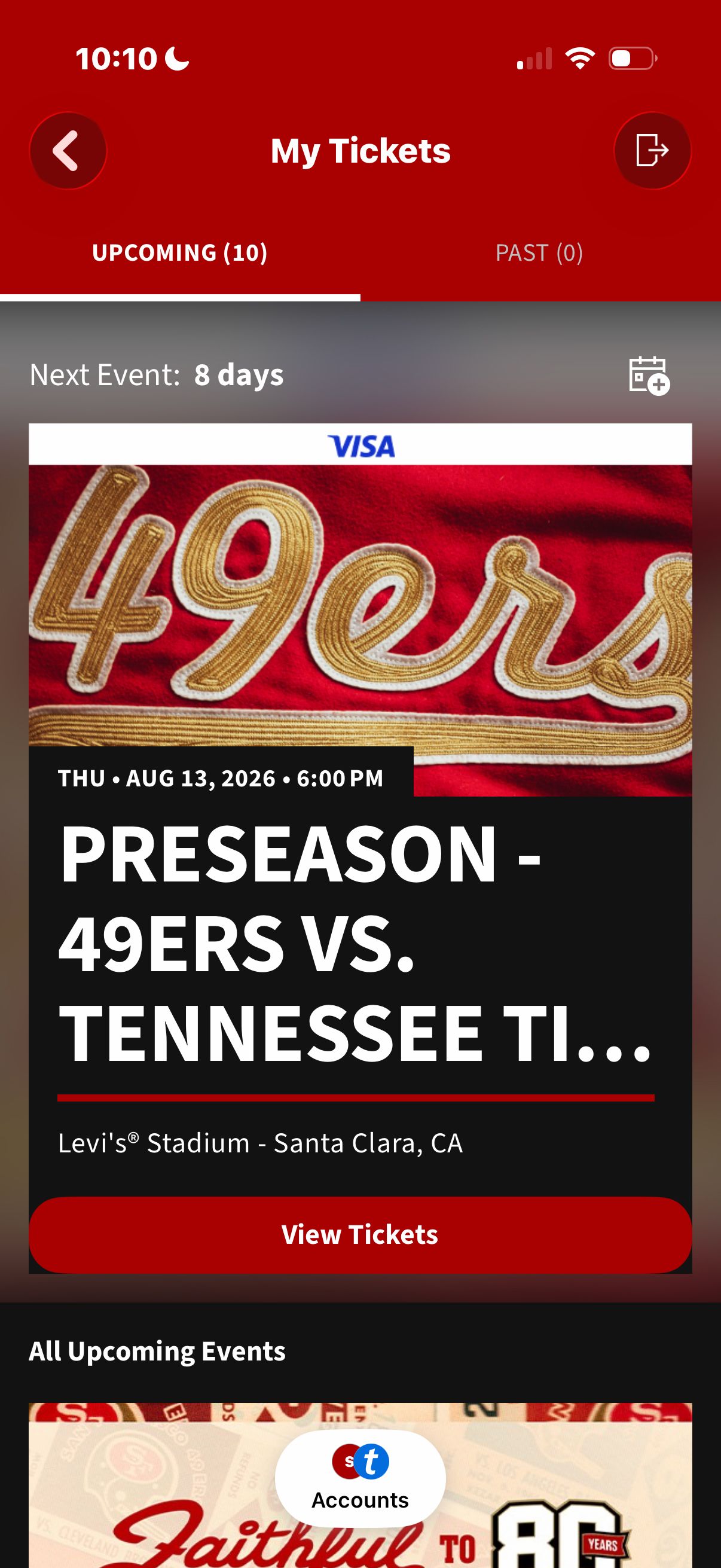
Once signed in, select your desired tickets.
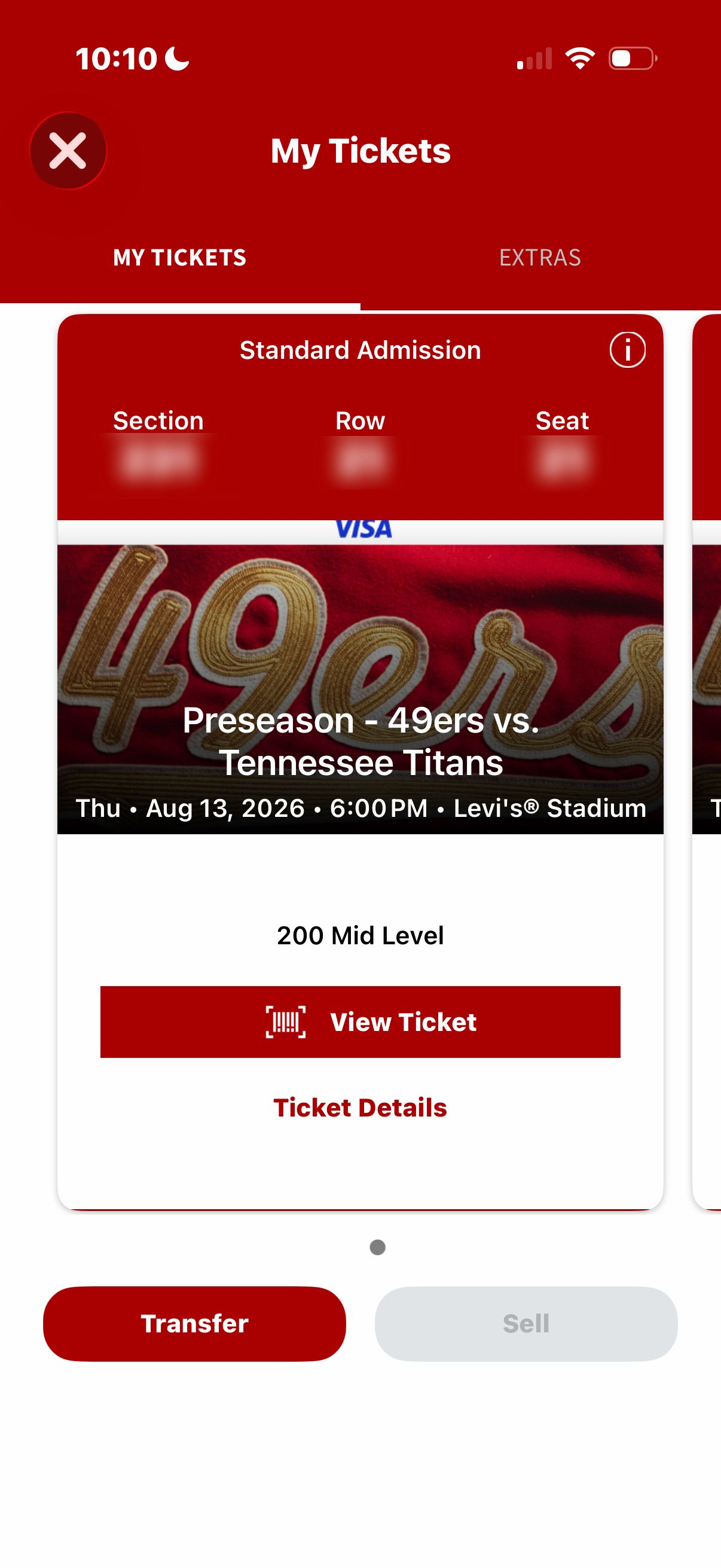
Send tickets to family and friends via text or email. Add tickets to Apple Wallet in advance to save time at the gates.
View your ticket barcode by tapping "View Ticket".
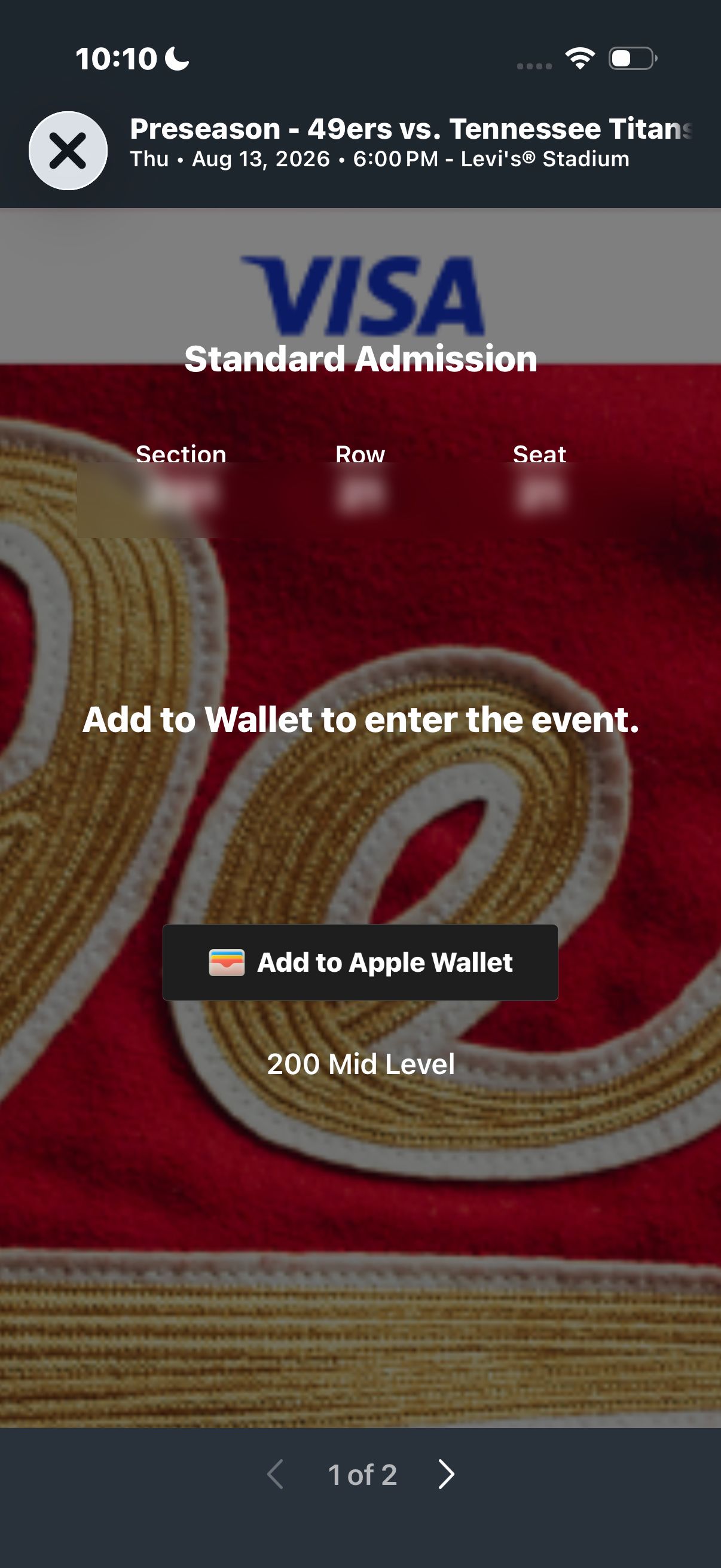
Add your tickets to your Apple Wallet in advance to save time. Be ready to scan or tap your tickets at the ticket reader upon entry.
Transfer Your Tickets
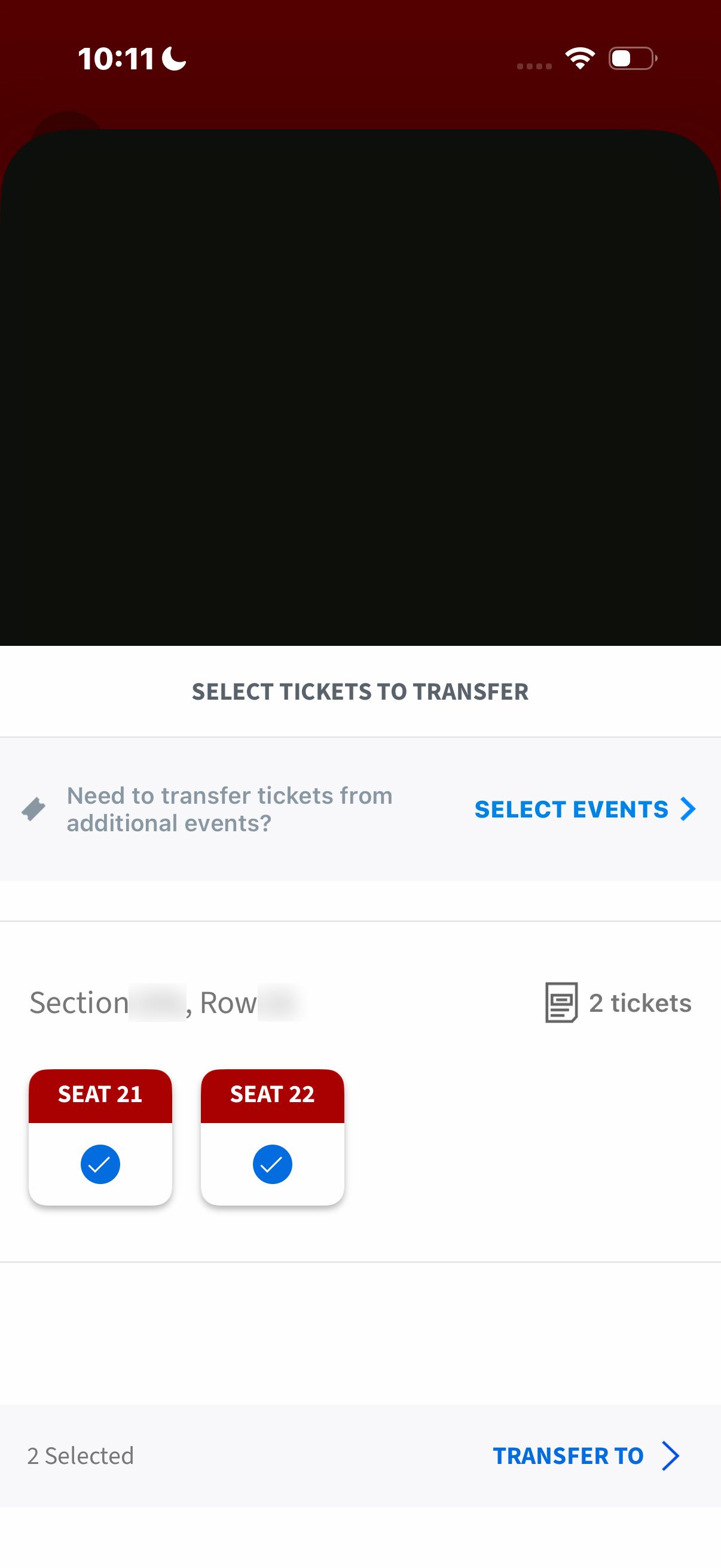
Select the tickets you want to transfer from "My Events" and tap "Transfer To".
*Please note that not all tickets are eligible for transfer. If they are not, the transfer option will not be shown.
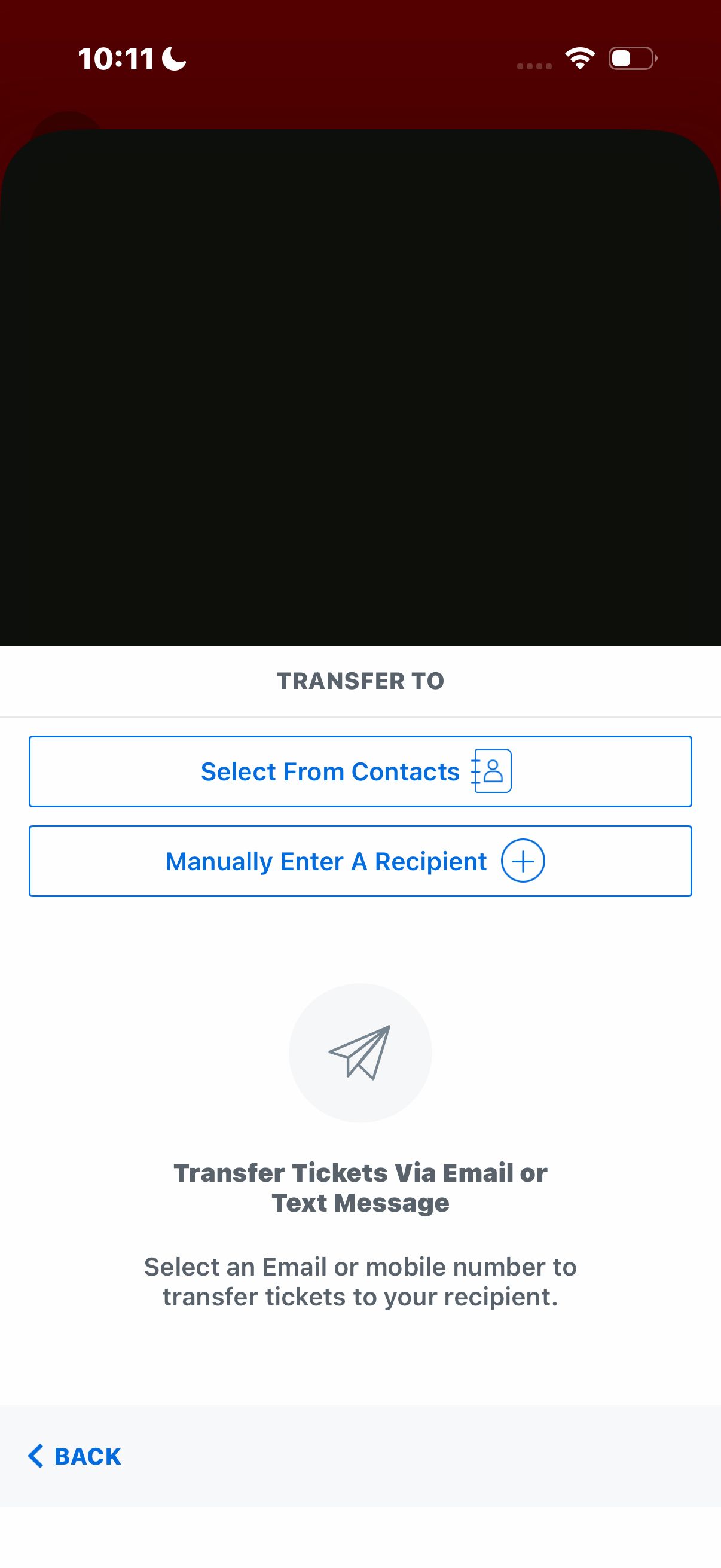
Transfer your tickets via text message or email.
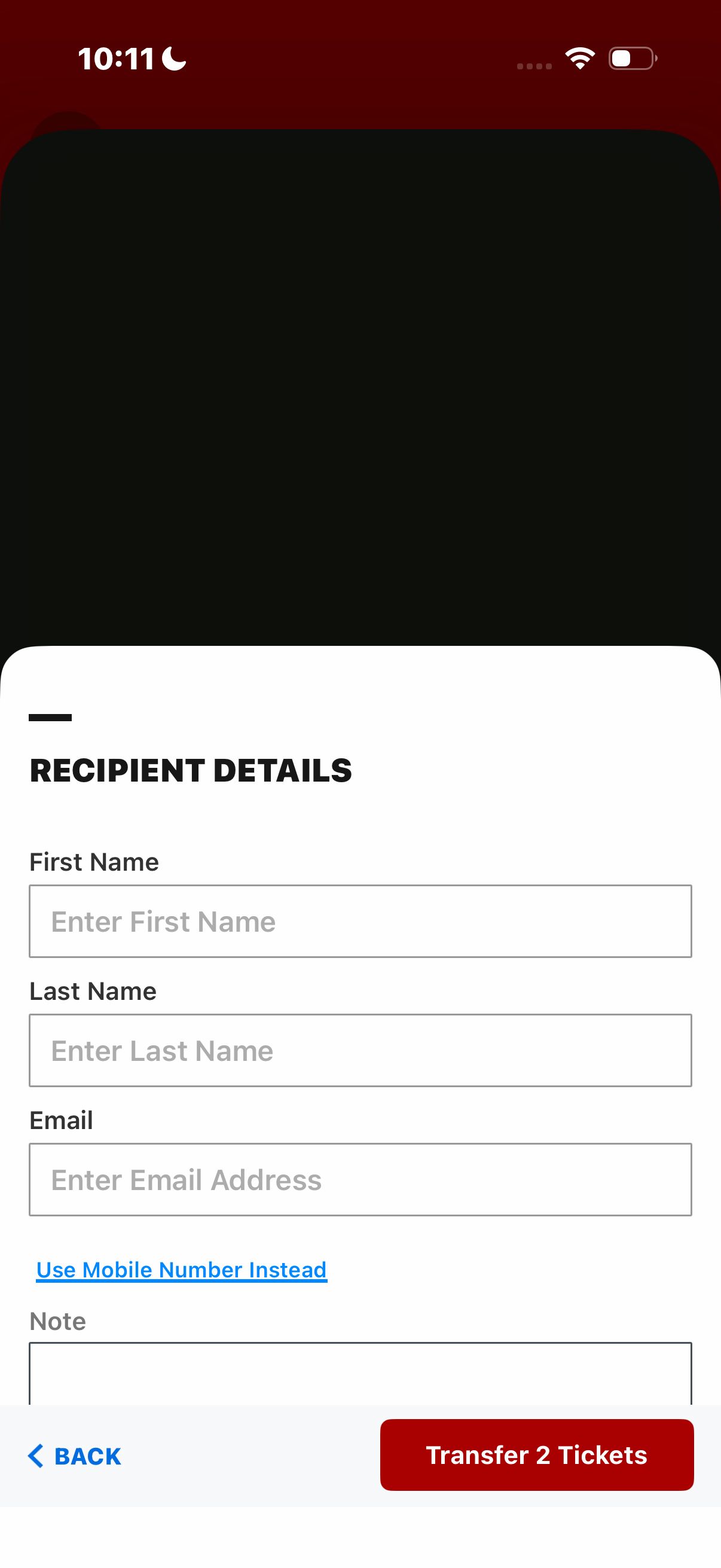
Manually enter a recipient's information (name and email or phone number) or select from your phone's contact list and "Transfer".
Update Your Push Notification Preferences
After opening the app, click the profile icon on the top right of your screen.
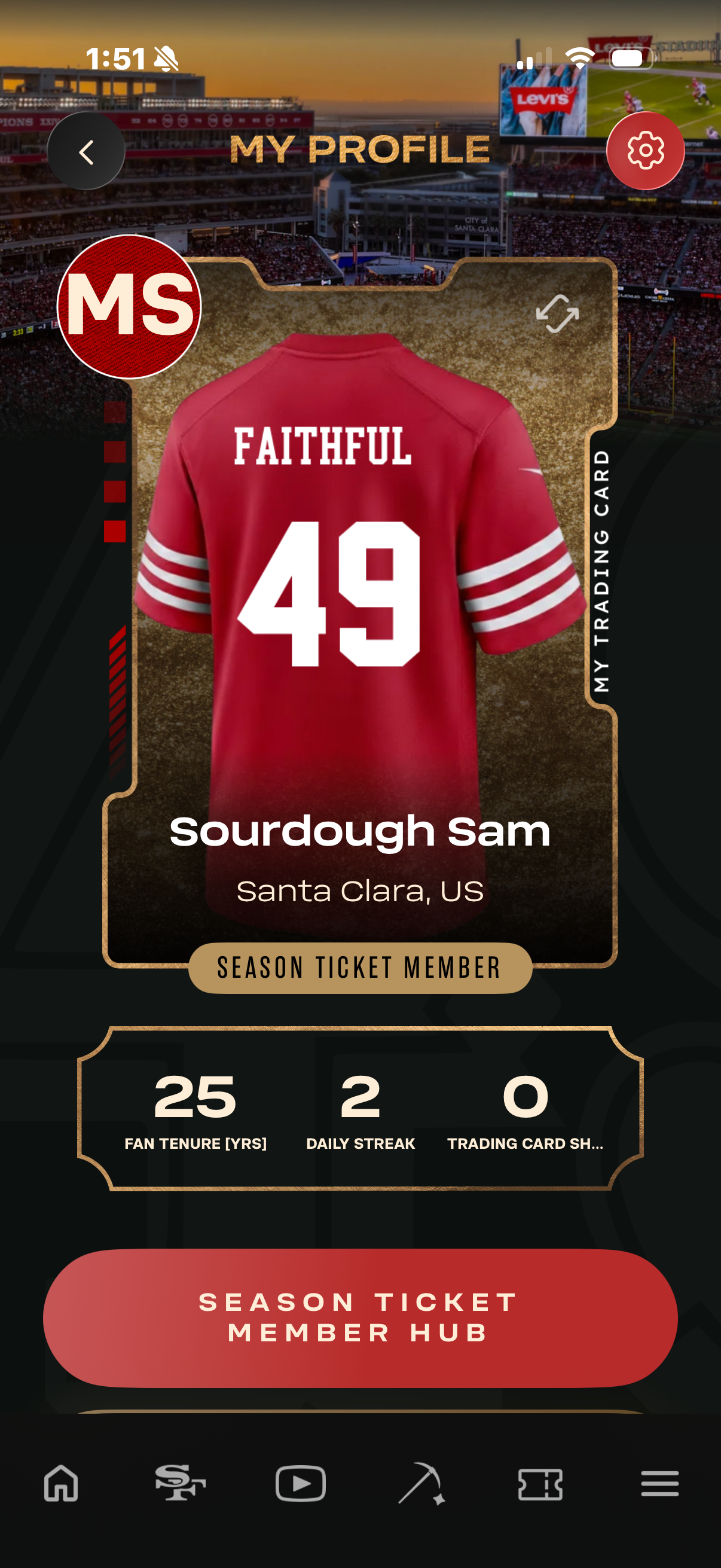
From your Fan Profile, click the settings icon on the top right of your screen.
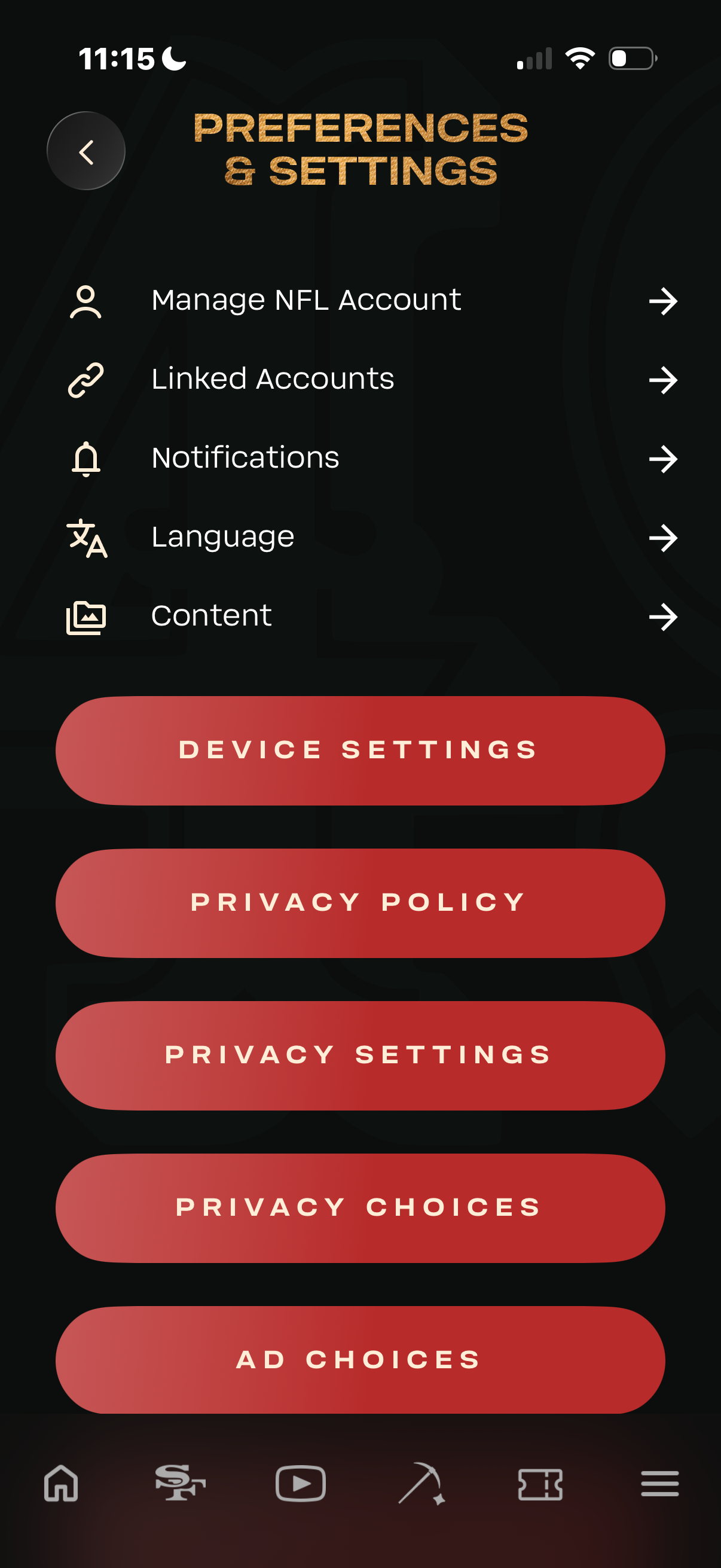
From the Preferences & Settings screen, tap "Notifications" to access your push settings.
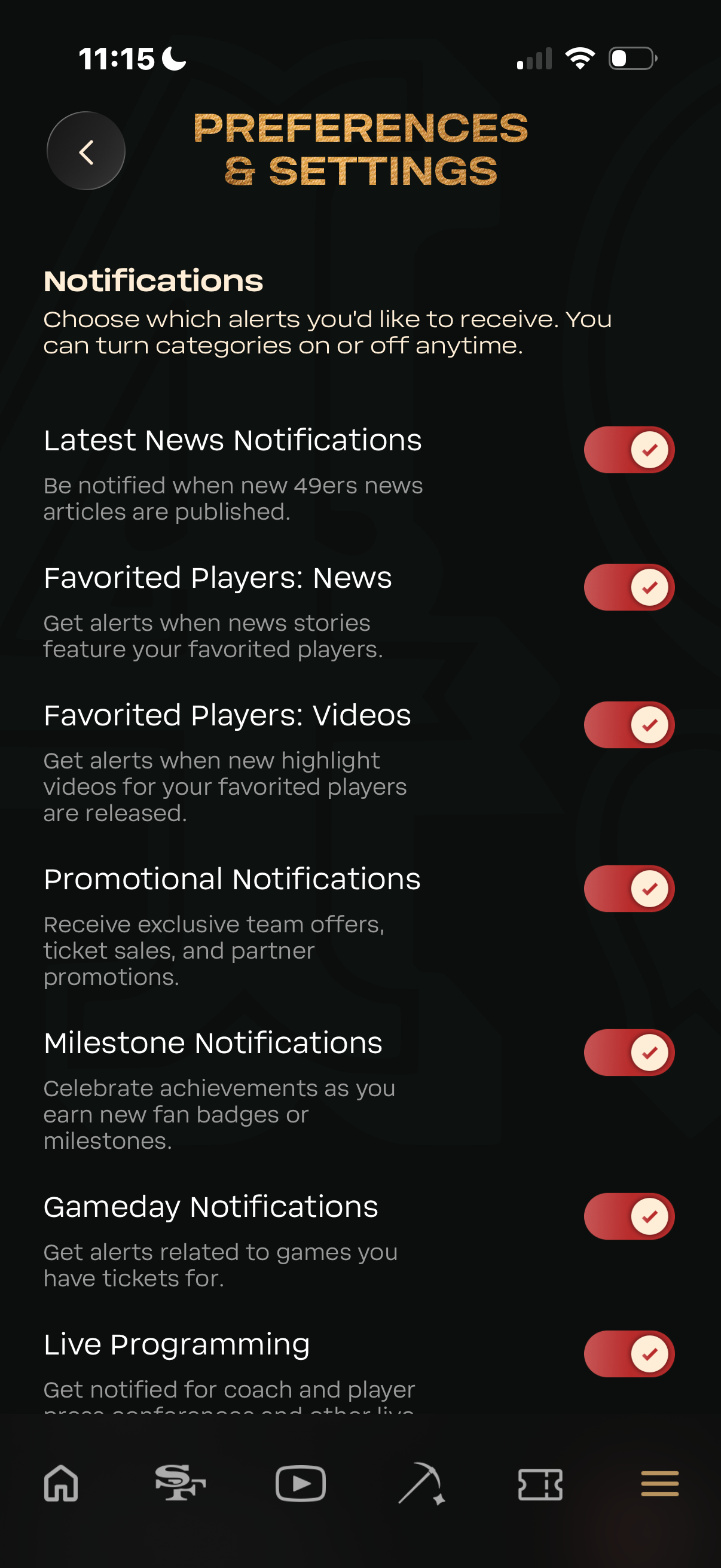
Tap the button next to each notification preference to toggle "on" or "off".